Simultaneous playback across your household is controlled by your provider’s connection limit, not by how many devices you install the app on. Most services let you add the subscription to every TV, phone, and tablet you own, but only a fixed number of those devices can stream at the exact same moment. If two people trying to watch different channels keeps failing, the fix is almost always the same: upgrade to a plan with more connections.
TL;DR:
- Providers limit how many devices can stream simultaneously rather than how many can be installed or synced, often capped by a “max_connections” setting.
- Typical connection tiers range from one for single users to four or more for larger households, with pricing often reflecting the number of simultaneous streams allowed.
- Network bandwidth, not connection limit, frequently causes streaming failures; households should ensure at least 30-45 Mbps for three 1080p streams.
- Troubleshooting streaming issues involves checking provider connection caps, optimizing home Wi-Fi, and verifying that active connections do not exceed the allowed maximum.
- Sharing credentials outside the household risks suspension, especially if logins originate from distant locations, so keeping access within the home is recommended.
Table of Contents
- What Does “IPTV Multiple Devices” Actually Mean?
- Setting Up IPTV on Your TV, Firestick, Phone, and PC
- How Much Internet Speed Do You Need for Several Streams?
- Why Do My Streams Fail on a Second or Third Device?
- How Many Connections Does Your Household Actually Need?
- How Buyiptvfor4k Handles Multi-Device Households
- Best Practices for Sharing an IPTV Account Safely
- Ready to Match a Plan to Your Household?
- Sources
What Does “IPTV Multiple Devices” Actually Mean?
Providers don’t limit how many devices carry your app or playlist. They limit how many of those devices can pull a live stream at the same instant. That single distinction resolves most of the confusion around IPTV multi-device compatibility.
Think of a “connection” (sometimes called a line, or in technical terms max_connections) as a ticket booth with a fixed number of windows open. You can hand out as many copies of your ticket as you want, but only a set number of people can walk through the booth at once. Installing the playlist on many devices is usually allowed, but the moment a second, third, or fourth device tries to play video beyond your allowed count, one of them gets locked out.
If your provider uses the Xtream Codes panel format, this shows up as two specific values:
max_connections: the total number of simultaneous streams your subscription allows.active_cons: how many of those slots are currently in use.
When active_cons equals max_connections, the next device that tries to connect either gets an error, a frozen buffer, or gets kicked to a login screen. That’s not a bug. That’s the system working exactly as designed.
It helps to separate this provider-side cap from a completely different limit: how many devices a player app itself will sync favorites, watch history, or profile settings to. An app like TiviMate might let you log into five devices for convenience, but that has nothing to do with how many can actually play video at once. You can have unlimited devices synced to your account and still only get two working streams if your plan caps you at two connections.
Connection tiers vary by provider, but the pattern is consistent across the industry:
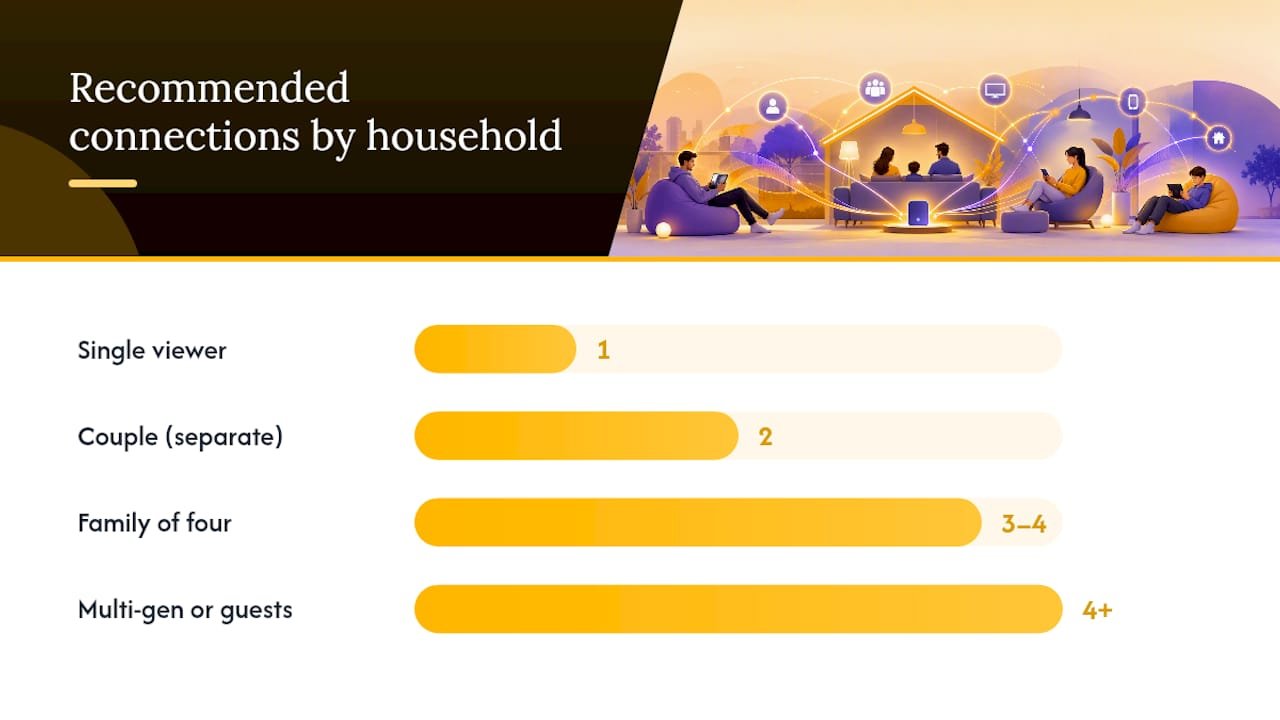
- 1 connection: single-viewer households, or a backup subscription for one room.
- 2 connections: couples, or a bedroom plus a living room TV.
- 3 connections: a common sweet spot for a family of four, covering a main TV, a kids’ room, and a mobile device.
- 4+ connections: larger households, shared living situations, or anyone who regularly has guests streaming alongside the family.
Knowing which tier you’re on before you start troubleshooting saves a lot of frustration later.
Setting Up IPTV on Your TV, Firestick, Phone, and PC
Getting the same subscription running on every device in your house takes about the same five minutes per device, once you know the pattern: install a player, enter your credentials, load the guide. The steps below cover the platforms most households actually own.
- Fire TV Stick / Firestick: Install a supported IPTV player from the Amazon App Store (or sideload one using an app installer like Downloader if it’s not listed). Open the app, choose “Add Playlist,” and enter either your M3U URL or your Xtream Codes login (server address, username, password). Let the electronic program guide (EPG) load fully before backing out of the app.
- Android TV / Google TV: Search the Play Store for a player such as TiviMate, which is widely used because it handles multiple playlists and EPG sources cleanly. Add your credentials the same way as on Firestick, then set favorites so the guide isn’t cluttered with channels you don’t watch.
- Smart TVs (Samsung, LG, other webOS/Tizen sets): Check your TV’s app store for a compatible IPTV player first. If none exists, most smart TVs support a downloadable app or a browser-based portal where you paste your playlist URL. Screen mirroring from a phone is a workable backup but isn’t ideal for daily use.
- iOS and Android phones/tablets: Download a player from the App Store or Google Play, log in with your credentials, and confirm playback works over both Wi-Fi and mobile data. Mobile players often pause video when the app moves to the background, so check your app’s settings if you expect to keep audio running while multitasking.
- Windows and Mac: VLC Media Player handles a direct M3U link without any extra software, or you can install a dedicated desktop IPTV client for a more polished guide and channel list. Either option works fine for a home office setup or a secondary streaming point.
Once you’ve repeated this on every device, a single, unified EPG saves real time compared to juggling a different channel layout on every screen. A step-by-step setup guide walks through the exact screens for each platform if you’d rather follow along with visuals.
Pro Tip: Set up your first device completely, including favorites and EPG, before touching the second one. It’s much easier to copy a working configuration than to troubleshoot two half-finished setups at the same time.
Remember: getting the app installed and logged in on five devices doesn’t mean five people can watch five different channels at once. That part depends entirely on your connection count, not your setup skill.
How Much Internet Speed Do You Need for Several Streams?
Bandwidth problems masquerade as connection problems more often than people expect. Before blaming your plan’s connection limit, rule out your home network.
Each stream needs a baseline amount of bandwidth depending on its resolution, and those numbers stack when multiple people watch at once:
A household running three 1080p streams at once needs somewhere around 30 to 45 Mbps just for video, before accounting for anything else on the network like video calls, cloud backups, or a kid gaming in another room.
A few practical adjustments make multi-device streaming far more stable:
- Connect your main streaming device (the one used most, or for 4K) directly to your router with an Ethernet cable rather than relying on Wi-Fi.
- If you’re covering more than one floor or several rooms, a mesh Wi-Fi system spreads a stronger signal further than a single router can.
- Wi-Fi 6 routers handle multiple simultaneous device connections noticeably better than older Wi-Fi 5 hardware, especially in homes with a lot of connected gadgets.
- Turn on Quality of Service (QoS) settings if your router supports them, and prioritize your streaming devices over background downloads.
- An outdated router is one of the most common causes of buffering that gets mistaken for a provider issue, along with running a VPN client that doesn’t support multiple simultaneous tunnels.
Run a quick speed test on your main network before troubleshooting anything else. Check your results against what internet speed you actually need for IPTV, then test again during your household’s peak viewing hours, since your ISP’s advertised speed and your real-world evening speed aren’t always the same number. If your connection tests well below your provider’s advertised rate, the fix might be a router upgrade or a call to your internet company, not a new IPTV plan.
Why Do My Streams Fail on a Second or Third Device?
Most multi-device errors trace back to one of three causes: the provider’s connection cap, a player-side glitch, or a genuine bandwidth shortfall. Sorting out which one you’re dealing with takes about two minutes if you follow the right sequence.
| Symptom | Likely Cause | Quick Fix |
|---|---|---|
| Second device fails while first plays fine | Connection limit reached | Stop one stream, or upgrade connections |
| All channels fail at once, then recover | Provider-side slot or server issue | Wait a few minutes, refresh the app |
| One channel fails, others work | Codec or stream-source issue | Try a different channel to confirm |
| Favorites or guide missing on new device | Player sync limit, not a stream issue | Re-add playlist, rebuild favorites |
| Constant buffering across multiple devices | Bandwidth shortfall | Check speed test, reduce active streams |
A short diagnostic sequence clears up most confusion: stop every stream in your house, start just one device, and confirm it plays cleanly. Then start a second device and note the exact error message and the time it happened. If your provider gives you access to a subscriber portal, check active_cons against max_connections to see if you’ve simply hit your ceiling. Finally, try a completely different channel on the failing device to rule out a problem with that one stream source rather than your connection count.
If the issue persists, basic player maintenance solves a surprising number of cases: clear the app’s cache, force a playlist and EPG refresh, or reinstall the player entirely. Roughly a third of the multi-device support tickets providers receive turn out to be stale app data rather than an actual connection problem.
When you do contact support, give them the exact time of the failure, which device failed, and what error appeared on screen. That level of detail lets a support team check server logs immediately instead of asking you to repeat troubleshooting steps you’ve already tried.
How Many Connections Does Your Household Actually Need?
Sizing your plan comes down to three questions: how many people watch at the same time, how often that happens, and what quality they expect. Answer those honestly and the right connection count becomes obvious.
A single person living alone rarely needs more than one connection. A couple who sometimes watches different shows in different rooms is usually comfortable with two. Once you’re talking about a family of four, three to four connections tends to be the realistic minimum, especially if teenagers stream on their own devices while parents watch downstairs. Households that regularly push 4K content on multiple screens should size up both their connection count and their internet bandwidth together, since a higher connection limit doesn’t help if the network can’t carry the extra load.
A few mapping examples make this concrete:
- Single viewer, one TV: 1 connection is plenty.
- Couple with separate viewing habits: 2 connections avoids the “someone has to wait” problem.
- Family of four with a mix of TV and mobile devices: 3 to 4 connections covers typical evening usage without conflicts.
- Multi-generational household or frequent guests: 4+ connections, paired with a bandwidth check, and prevents constant upgrade requests down the line.
Pricing shapes across the industry tend to follow two patterns: a flat per-tier price where each additional connection costs a set add-on fee, or bundled plans where a specific connection count is baked into the subscription length you choose. Buying a longer subscription (3, 6, or 12 months) at a higher connection tier is often more cost-effective than repeatedly paying for a 1-month plan and upgrading later.
One more thing worth knowing before you start sharing a login: most providers explicitly allow installing on multiple devices but treat wide credential sharing across unrelated households as a red flag. Repeated simultaneous logins from distant IP addresses or wildly different geographic locations can trigger an automatic suspension, even if you’re within your connection count. If you’re weighing plans generally, a buyer’s checklist for choosing an IPTV service covers the other factors worth comparing beyond connection count alone.
How Buyiptvfor4k Handles Multi-Device Households
Buyiptvfor4k structures its subscription plans specifically around real household viewing patterns rather than a one-size-fits-all connection count. Plans are available in 1, 3, 6, and 12-month lengths, and connection tiers scale from single-stream access up through multi-connection packages built for families and shared living spaces.
Every subscription includes free setup assistance, which matters more than it sounds like on paper. Getting five devices configured correctly, with matching EPGs and no favorites lost between screens, is the part most people underestimate when they first buy an IPTV plan. Buyiptvfor4k’s setup guide walks through each supported device type step by step, and the full channel list lets you confirm your must-have channels and sports packages are covered before you commit to a plan length.
If your household outgrows its current connection count, whether that’s a new roommate, a second TV, or teenagers who want their own stream, upgrading is a straightforward plan change rather than a full resubscription. Support can walk you through exactly which tier matches your new usage.
What this looks like in practice:
- Connection tiers built around real household sizes, not arbitrary numbers.
- Subscription lengths of 1, 3, 6, or 12 months, so short-term and long-term users both get a fair price.
- Free setup help across Fire TV, Android TV, smart TVs, phones, and desktop players.
- A straightforward path to add connections as your household’s streaming needs grow.
Best Practices for Sharing an IPTV Account Safely
The biggest mistake households make with IPTV isn’t a technical one. It’s treating login credentials the way people used to treat a Netflix password, forgetting that provider terms of service usually draw a hard line around who counts as one household.
Keep credentials inside your own home. Posting a login in a group chat or a forum, even as a favor to a friend, is the fastest way to trigger a suspension you didn’t see coming, since providers actively watch for logins appearing from unrelated locations. If a friend or extended family member genuinely needs regular access, buying them their own connection, or adding one to your plan, is cheaper in the long run than risking your whole subscription over a shared password.
Distance matters more than people assume. Two devices streaming from the same house rarely raise a flag. Two devices streaming from two different cities, on the same login, at the same time, looks exactly like the account abuse pattern providers are built to catch.
A few habits protect your access long after setup day. Use a strong, unique password rather than something reused from another account. If you ever suspect a login has leaked, rotate your credentials immediately rather than waiting to see if a problem shows up. None of this requires technical skill, just the same discipline you’d apply to any other paid account with real value attached to it.
— two
Ready to Match a Plan to Your Household?
If you’ve made it this far, you already know the real question isn’t “can I install this on multiple devices,” it’s “how many can stream at once, and does my plan cover that.” Buyiptvfor4k’s connection tiers are built to answer that question directly, without forcing you into a single fixed package that doesn’t match how your household actually watches TV.
Whether you need a single connection for a quiet apartment or four-plus for a full house with kids, guests, and multiple TVs running 4K at once, there’s a subscription length and connection tier that fits without overpaying for capacity you’ll never use. Plans run 1, 3, 6, or 12 months, and every one includes free setup help so you’re not troubleshooting Firestick logins alone at 9 p.m. Browse the full plan lineup to compare connection counts and subscription lengths side by side, or start with a shorter 1-month plan if you want to test your setup before committing to a longer term. Once you know your household’s viewing pattern, picking the right tier takes about five minutes.