Yes, you can watch IPTV on Roku, but Roku’s operating system won’t let you sideload Android APKs the way you might on a Fire TV Stick. The quickest path is screen mirroring from an Android phone or Windows PC, or AirPlay if you’re on an iPhone or Mac. From there, Roku Channel Store IPTV players and Plex with an M3U tuner give you more permanent, stable setups.
TL;DR:
- Screen mirroring and AirPlay require continuous streaming from a device, which can drain batteries and disrupt long viewing sessions.
- Roku Channel Store IPTV apps are limited in selection and generally need users to supply their own playlists for activation.
- Plex with an M3U tuner offers the most stable long-term setup but involves extra upfront configuration on a server or computer.
- The performance of IPTV on Roku highly depends on the device model and Wi-Fi stability, with wired connections significantly reducing buffering issues.
- Using licensed IPTV services with proper credentials is essential to avoid copyright violations, and network setup should be optimized before troubleshooting software.
Table of Contents
- Can You Actually Run IPTV on Roku?
- Quick Overview: The 4 Practical Ways to Watch IPTV on Roku
- How Do You Set Up Each IPTV Method on Roku?
- Which Method Fits Your Roku and Your Setup?
- Fixing Common IPTV Problems on Roku
- Is Watching IPTV on Roku Legal?
- How Buyiptvfor4k Makes Roku Setup Simple
- A Practical Note From Our Setup Experience
- Sources
Can You Actually Run IPTV on Roku?
The short answer is yes, with a caveat that trips up a lot of new Roku owners. Roku runs a closed operating system that blocks sideloading Android apps, which is the go-to method on Android-based streamers like Fire TV or an Nvidia Shield. That single restriction is why so many people search for workarounds instead of just installing an app.
The good news: Roku still supports IPTV playback through four legitimate routes. None require rooting the device or installing unofficial software. You just need to pick the method that matches your Roku model, your other devices, and how much setup effort you’re willing to put in.
Quick Overview: The 4 Practical Ways to Watch IPTV on Roku
Each method trades off ease of setup against long-term stability. Here’s the shortlist:
- Screen mirroring — the easiest entry point on nearly every Roku model, but it needs a phone or PC running nearby and streaming the whole time.
- AirPlay — smooth and low-latency for iPhone, iPad, or Mac owners, though it only works on AirPlay-enabled Roku models from 2020 onward.
- Roku Channel Store IPTV players — a native app experience on Roku itself, but availability is limited and most require you to supply your own playlist at activation.
- Plex with an M3U tuner — the most stable option for whole-home viewing, though it takes more upfront setup work on a server or computer.
If you just want something running tonight, screen mirroring or AirPlay gets you there fastest. If you’re setting up a living room system you won’t touch again for months, Plex is worth the extra half hour.
How Do You Set Up Each IPTV Method on Roku?
Pick your method based on what devices you already own, then follow the steps below.
Screen mirroring (Android and Windows):
- On your Roku remote, go to Settings, then System, then Screen mirroring, and set it to “Prompt” or “Always allow.”
- On your Android phone, open Quick Settings and tap Cast or Smart View, then select your Roku.
- On Windows, open the Action Center and choose Cast, then pick your Roku from the device list.
- Open your IPTV app on the source device and start playback. It should appear on your TV within seconds.
AirPlay (iPhone, iPad, or Mac):
- On Roku, go to Settings, then Apple AirPlay and HomeKit, and enable AirPlay.
- Install your IPTV app on the Apple device and sign in or load your playlist.
- Open Control Center and tap Screen Mirroring, or use the app’s built-in AirPlay icon if it has one, then select your Roku.
Roku Channel Store IPTV players:
- Search the Channel Store for an IPTV player and install it.
- Open the app. Most display an activation code or a login screen.
- Enter your M3U/M3U8 URL or Xtream Codes credentials when prompted since these players ship without preloaded content and rely entirely on what you supply.
- Watch for trial period limits. Some apps lock features after a set number of days unless you activate a paid tier.
Plex with a custom M3U tuner:
- Install Plex Media Server on a computer or NAS on your home network.
- Add a custom tuner using middleware like Threadfin, which converts your M3U playlist into a format Plex recognizes.
- Enable Live TV & DVR in Plex’s settings and point it to your new tuner.
- Open the Plex app on Roku. Your channels appear in a native-feeling grid, and playback stability improves noticeably compared to mirroring.
Roku Media Player for local files:
This built-in app plays local video files over your network, but it doesn’t handle live streams or M3U playlists. It’s fine for a downloaded recording, not for actual live IPTV.
Pro Tip: Keep your phone or PC plugged into power during long mirroring sessions. Screen sharing drains batteries fast, and a dead phone mid-game is the most common complaint we hear from mirroring users.
Which Method Fits Your Roku and Your Setup?
Your Roku model matters more than most guides admit. A base Roku Express handles screen mirroring fine but struggles with anything demanding more processing power. Here’s how to match method to hardware:
- Roku Express or Express 4K: stick with screen mirroring or AirPlay. Limited RAM makes Channel Store IPTV apps sluggish.
- Roku Streaming Stick 4K or Roku Ultra: handles Channel Store IPTV players and Plex smoothly, including 4K streams without stutter.
- Heavy daily live-TV viewing: upgrade to a Stick 4K or Ultra, or run Plex on a wired connection for consistency.
- Privacy and VPN needs: Roku doesn’t support native VPN apps, so run your VPN at the router level or on the mirroring device itself, not on the Roku.
- Want native IPTV apps without workarounds: an Android-based streamer supports sideloading directly, which Roku never will.
Fixing Common IPTV Problems on Roku
Most issues trace back to one of four causes, and each has a quick fix.
- Buffering: switch your router to the 5GHz band, or better yet, connect via ethernet. A stable connection needs sufficient bandwidth for reliable HD to 4K streaming.
- Activation failures: double-check your M3U URL is typed correctly and confirm whether your provider uses Xtream Codes or a direct M3U link, since apps handle each differently.
- Low-RAM slowdowns: if you’re on a Roku Express, IPTV players can lag. Plex offloads processing to your server, which sidesteps the issue entirely.
- Mirroring drops: confirm both devices sit on the same Wi-Fi network, check your router’s firewall settings, and switch to wired where you can.
A wired ethernet connection resolves the majority of buffering complaints reported by Roku IPTV users, since wireless congestion is the single biggest culprit behind dropped frames during live sports.
Is Watching IPTV on Roku Legal?
IPTV players themselves are legal software. The trouble starts when you stream copyrighted content without proper rights, which violates U.S. copyright law regardless of the app you use. Stick to licensed IPTV subscriptions with verifiable credentials, and check Roku’s official support pages for current device policies before installing anything unfamiliar.
How Buyiptvfor4k Makes Roku Setup Simple
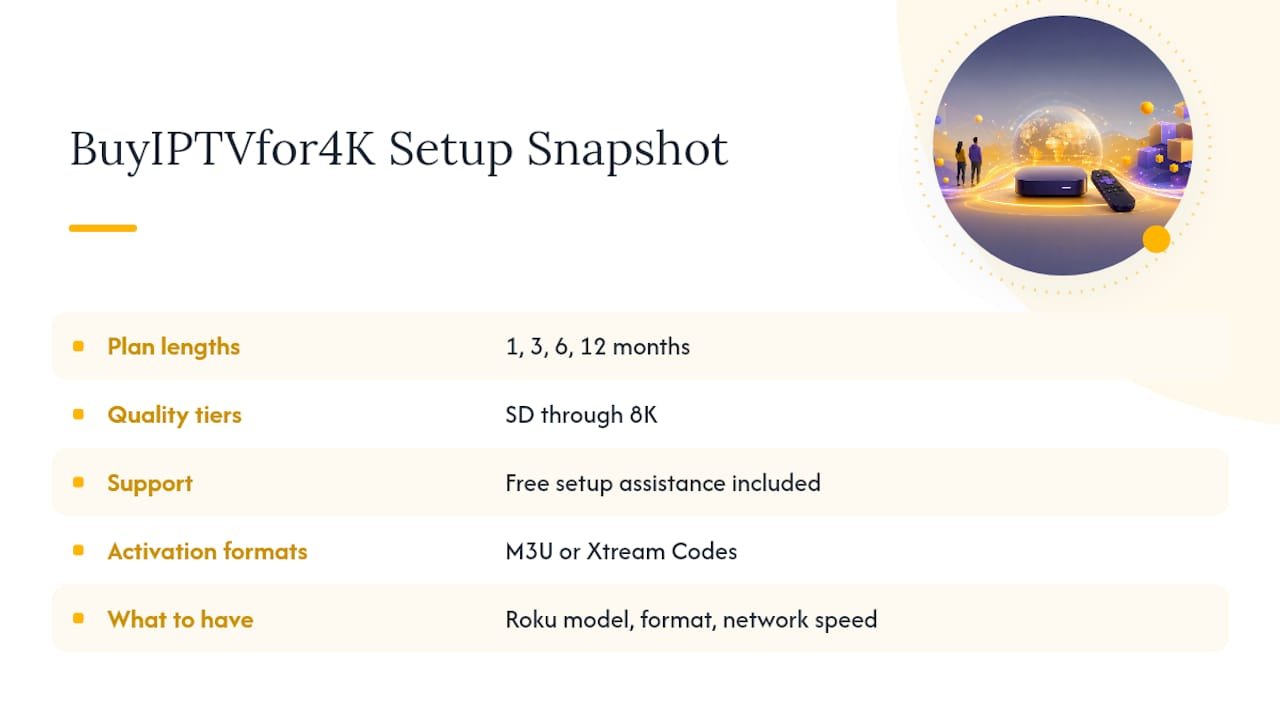
Assembling your own M3U playlist, testing Xtream Codes credentials, and troubleshooting activation errors takes real trial and error. Buyiptvfor4k skips that entirely by handing you working credentials and setup support the moment you subscribe, with plans running 1, 3, 6, or 12 months across SD through 8K quality tiers.
Every plan includes free setup assistance, so you’re not left guessing which Channel Store app or Plex configuration fits your Roku model. Buyiptvfor4k’s setup guide walks Roku users through activation step by step, and the channels list shows exactly what’s included before you commit.
Before reaching out to support, have three things ready: your Roku model (Express, Stick 4K, or Ultra), your preferred activation format (M3U or Xtream Codes), and a rough sense of your home network speed. That’s enough for the team to get you streaming the same day. Ready to skip the trial-and-error entirely? Check current plans and pricing to get started.
A Practical Note From Our Setup Experience
The single biggest mistake we see Roku IPTV users make isn’t picking the wrong app. It’s ignoring their network setup entirely. Screen mirroring and Plex both live or die on Wi-Fi stability, and most buffering complaints trace back to a router sitting three rooms away from the TV, not the IPTV service itself.
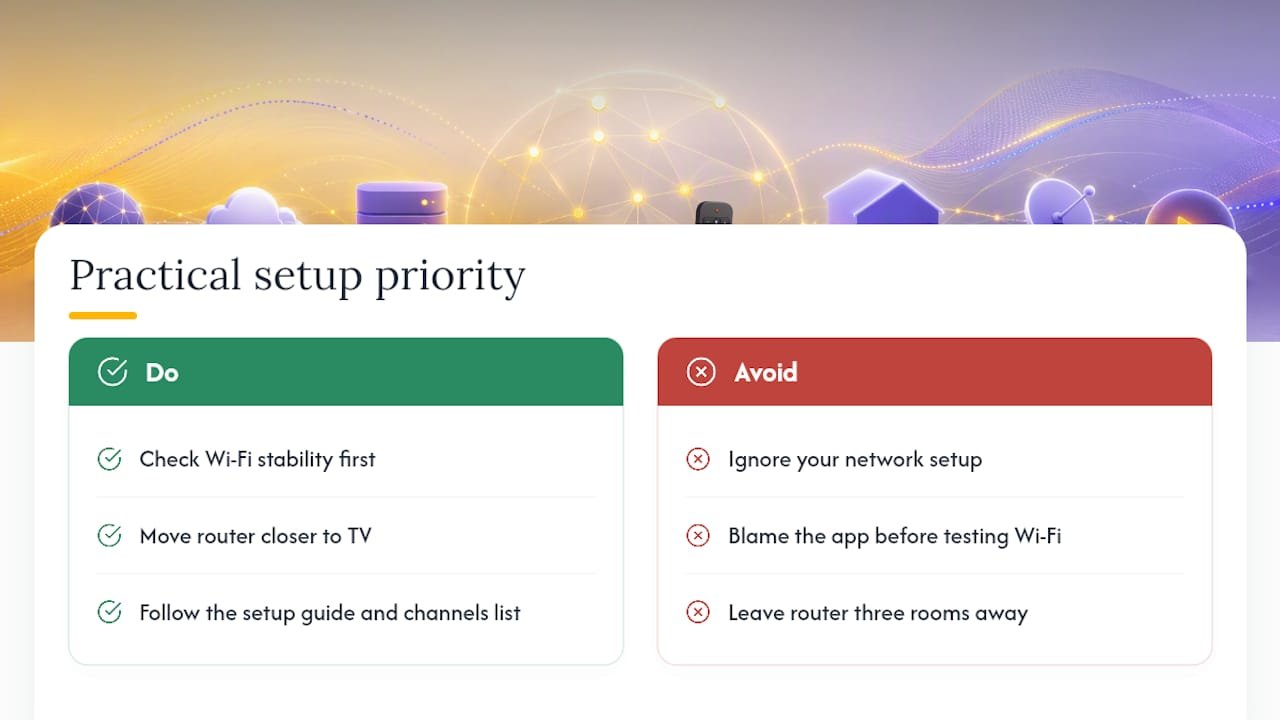
If you take one thing from this guide, prioritize your connection before you troubleshoot the app. Our setup guide and channels list cover the rest.
Two has spent years helping streaming subscribers untangle device compatibility questions, with a focus on translating technical setup steps into guidance people can actually follow without a tech background.
— two