For IPTV subscribers, QoS means your router deciding your TV’s stream gets fed first, before your laptop’s cloud backup or your kid’s game download. The three moves that matter most: keep enough bandwidth headroom for your resolution and device count, prioritize the streaming device in your router settings, and use Ethernet or 5/6 GHz Wi-Fi instead of the crowded 2.4 GHz band. Device decoding power and picking a plan that matches your actual connection round out the picture.
TL;DR:
- Ensuring your router’s QoS is enabled and your streaming device has the highest priority helps prevent buffering caused by other household device activity.
- Using Ethernet or 5 GHz Wi-Fi instead of crowded 2.4 GHz networks significantly improves stream stability and reduces buffering during live IPTV viewing.
- Most home internet plans can support IPTV flawlessly if bursty network congestion and packet loss are minimized with proper QoS settings and device configurations.
- Matching your subscription plan’s resolution to your actual bandwidth and device support prevents content quality issues and stream failures.
- Regularly updating device firmware, clearing app caches, and scheduling large downloads outside peak viewing hours improve IPTV playback performance.
Table of Contents
- What QoS Means for IPTV Subscribers
- How QoS Problems Show Up on Your Screen
- Setting Up Your Device and Home Network for QoS
- Choosing an IPTV Plan That Matches Your QoS Setup
- Quick Troubleshooting Checklist
- Buyiptvfor4k’s Perspective on Getting QoS Right
- Get Stable Streaming With a Plan Built for Your Setup
- Sources
What QoS Means for IPTV Subscribers
QoS, or Quality of Service, is not a feature you buy. It is a setting you configure on the router already sitting in your living room. Most consumer routers made in the last several years support QoS, which lets you tell the router “this device matters more than that one” when multiple devices compete for the same connection.
Here is the scenario QoS solves: your teenager starts a 40GB game download, your partner’s laptop syncs photos to the cloud, and suddenly your 4K stream stutters even though your internet plan says it delivers 200 Mbps. The bandwidth exists. The router just handed it out first-come-first-served instead of giving your TV priority. Turning on QoS and flagging your streaming box as high priority fixes exactly that.
This is different from ISP-level QoS, which involves how your provider manages traffic across its own network. As a subscriber, you have no dial to turn there beyond calling and asking questions, so most of your practical control lives at the router, not upstream. The ITU-T’s technical guidance on IPTV performance treats the home endpoint as one of the most direct measurement points for what a viewer actually experiences, which is exactly why fixing things at home pays off faster than chasing your provider.
Four metrics drive what you see on screen:
- Bandwidth: too little causes lower resolution or constant rebuffering.
- Latency: high latency delays channel changes and live interactions.
- Jitter: uneven packet timing causes stutters even when average speed looks fine.
- Packet loss: dropped data shows up as pixelation or frozen frames.
Pro Tip: Router QoS helps you split what you already have more fairly. It cannot manufacture bandwidth your plan does not provide.
How QoS Problems Show Up on Your Screen
Each metric failure has a signature you can recognize without any technical background. Rebuffering, the spinning wheel that eats into your show, usually means bandwidth is falling short of what the stream needs at that moment. Stutters and frame drops during otherwise smooth playback usually point to jitter. Pixelation or blocky artifacts during fast motion usually trace back to packet loss. A sluggish delay when you change channels often reflects latency.
Live IPTV is far less forgiving than on-demand content. A video-on-demand service can buffer 10 or 20 seconds ahead of what you are watching, hiding brief network hiccups entirely. Live channels can’t build that cushion the same way, so a half-second dip in your connection reaches your screen almost immediately as a freeze or a skip.
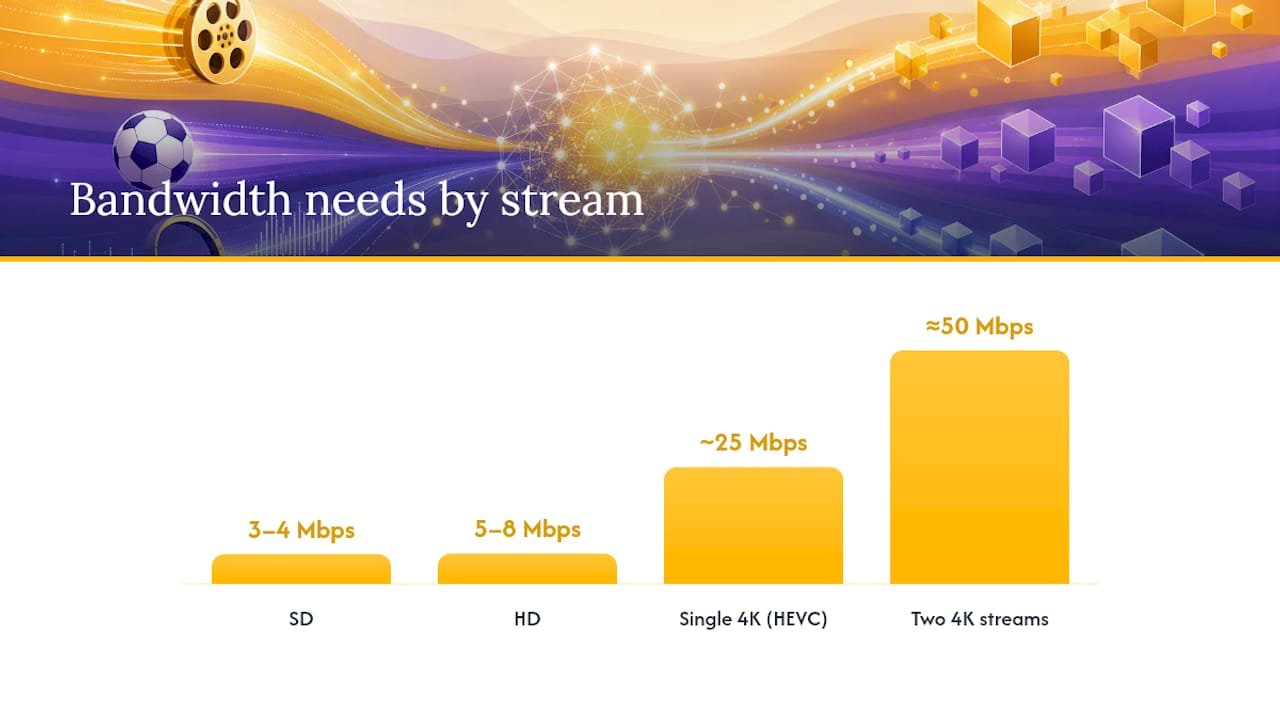
Bandwidth needs scale sharply with resolution:
| Stream Type | Typical Bandwidth Needed |
|---|---|
| SD | 3–4 Mbps |
| HD | 5–8 Mbps |
| Single 4K (HEVC) | ~25 Mbps |
| 4K with latency/jitter margin | Low latency, low jitter |
Those 4K figures come from practical 4K IPTV setup guidance, and they assume one stream. If two people in your house watch different 4K channels at once, double the number and add margin. A reasonable rule: take your minimum requirement and add 25 to 50% headroom, since real-world Wi-Fi rarely delivers its advertised maximum.
The good news, backed by residential network measurement research, is that most home internet connections are perfectly capable of carrying IPTV cleanly. What causes the worst outages is not steady, low-level packet loss. It’s bursty congestive loss, where a router’s buffer fills up and dumps a chunk of packets all at once during a traffic spike. That is precisely the failure mode QoS is designed to prevent.
Setting Up Your Device and Home Network for QoS
Getting QoS working in practice means walking through your router and your streaming device, not just your internet plan. Follow these in order:
- Enable QoS in your router settings and assign your streaming box or smart TV the highest priority level available.
- Switch to Ethernet for your main TV wherever possible. It is still the single most reliable way to eliminate wireless interference entirely.
- If wireless is your only option, use 5 GHz or Wi-Fi 6/6E, not 2.4 GHz, and add a mesh node near the TV if the signal is weak. Consumer bandwidth guides consistently find that weak Wi-Fi, not slow internet, causes most household buffering complaints.
- Turn on hardware decoding in your device’s settings if it offers the option. This offloads 4K/HEVC processing to the device’s chip instead of its processor, and it prevents the overheating and frame drops that get blamed on the network but actually come from an overworked device.
- Clear your app’s cache periodically and keep both firmware and apps updated.
- Set a moderate buffer size for live channels and schedule large downloads or backups outside your prime viewing hours.
Router and setup guidance consistently points to this combination, QoS plus device prioritization, as the fix that resolves the majority of reported live IPTV interruptions.
Pro Tip: If you suspect your ISP is throttling streaming traffic specifically, a VPN can sometimes route around that shaping. Test it during a peak-usage evening, but know it typically adds a small amount of latency in exchange.
Choosing an IPTV Plan That Matches Your QoS Setup
Once you know what your home network can actually deliver, tested rather than assumed, you’re in a position to pick a plan intelligently instead of guessing. Match the plan’s advertised resolution to your measured bandwidth, not your internet provider’s marketing number. A “up to 500 Mbps” plan on paper means little if your living room Wi-Fi only delivers 40.
Look for these signals from any provider before you commit:
- Published recommended connection specs for each resolution tier.
- A clear list of supported devices and codecs, so you know your hardware can actually decode what you’re paying for.
- Support for multiple concurrent streams if more than one person in your household watches at once.
- Short-term or trial subscription options that let you test real playback before locking into a year.
- Responsive support you can actually reach if something breaks.
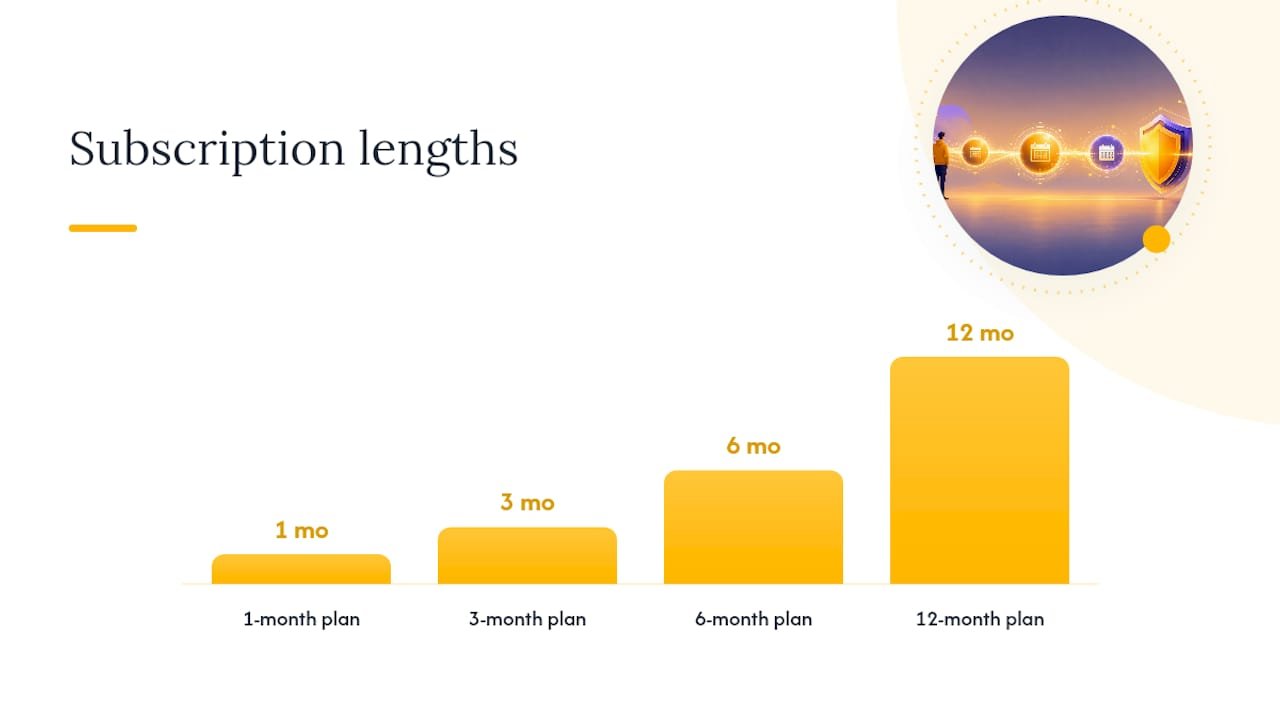
Buyiptvfor4k publishes device compatibility guidance and offers plans in 1, 3, 6, and 12 month lengths specifically so you can test before committing to the longer, better-value options. The most useful test is a real one: run the service during your household’s peak viewing hours, when everyone’s devices are online, not at 2 a.m. when the network is empty. If it holds up then, it will hold up when you need it most.
Quick Troubleshooting Checklist
When buffering hits mid-game or mid-episode, work through this in order:
- Run a speed and ping test to your router.
- Check whether another device is mid-download or backup.
- Switch to Ethernet, or move to 5 GHz Wi-Fi, and restart both router and streaming device.
- Confirm QoS is enabled and your streaming device has priority.
- Verify hardware decoding is on and the device isn’t overheating or CPU-limited.
- Clear the app’s cache and retest during a quieter time.
- If it persists, contact support with your specific speed test results in hand.
Buyiptvfor4k’s Perspective on Getting QoS Right
We built our setup guide around device compatibility because that’s where most preventable problems actually originate, not the network. Our channels list shows exactly what resolution each channel supports, so you’re never guessing whether your plan matches your hardware. If you’re evaluating whether your home setup can handle 4K reliably, a short subscription is the honest way to find out before you commit.
— Buyiptvfor4k
Get Stable Streaming With a Plan Built for Your Setup
Buyiptvfor4k is built for exactly the QoS headaches this article walks through: mismatched resolution expectations, unclear device support, and no easy way to test before you commit. Our plans span SD through 8K, list supported devices upfront, and include free setup assistance so prioritizing your streaming device and confirming hardware decoding is not something you figure out alone.
Start with the 1-month subscription to test playback stability during your own household’s peak hours, the real test that matters more than any speed test number. If it performs the way you need, the 3-month plan or 6-month plan offer better value once you’ve confirmed your setup handles it. Check the full channels list to confirm your must-watch content is included before you choose a length.
Sources
- ITU-T technical tutorial: IPTV QoS performance metrics
- Measurement study of IPTV-like traffic on residential links
- Best Internet Setup for 4K IPTV (Router, Wi-Fi & Ethernet Guide) | LumIPTV Blog